
 HTPC Manager finally supports Sonarr, SickRage and Headphones thanks to Hellowlol. HTPC Manager adds that extra feeling of excellence to your Raspberry Pi Media Server. You get a slick, modular HTPC interface so you can manage all of your software and services on your HTPC. Services you can manage include Plex, Kodi XBMC, Sonarr, Sabnzbd, NZBGet, uTorrent, Transmission, SickBeard, CouchPotato and more. You will see nice overviews of recently added shows or movies, suggestions for other movies and TV shows. You can even add movies or shows from the HTPC Manager interface. This guide was tested on Minibian for the Raspberry Pi 2 but should work on the Banana Pi, Orange Pi, Hummingboard, Cubieboard and ODROID devices too.
If you are trying to figure out which hardware would work best for you, consider reading the Pi benchmarks.
| Pi Unit | ||||||||
|---|---|---|---|---|---|---|---|---|
| Raspberry Pi 3 | Quad Core | |||||||
| Raspberry Pi 2 | Quad Core | |||||||
| Raspberry Pi | Single Core | |||||||
| Banana Pi | Dual Core | |||||||
| Banana Pi Pro | Dual Core |
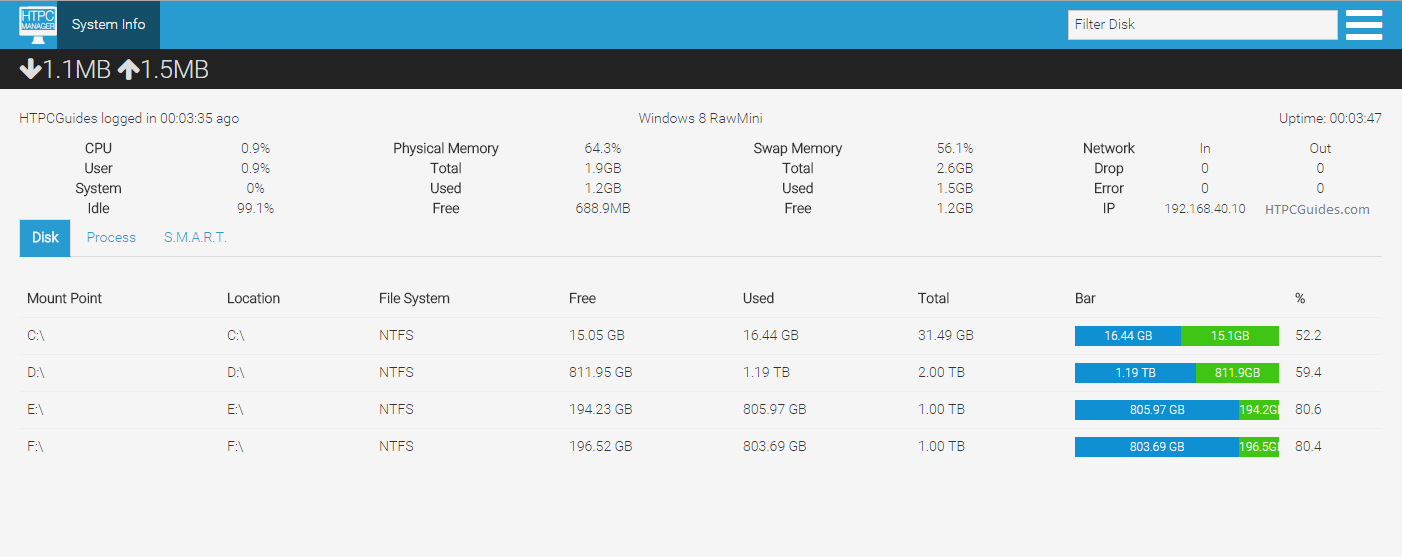
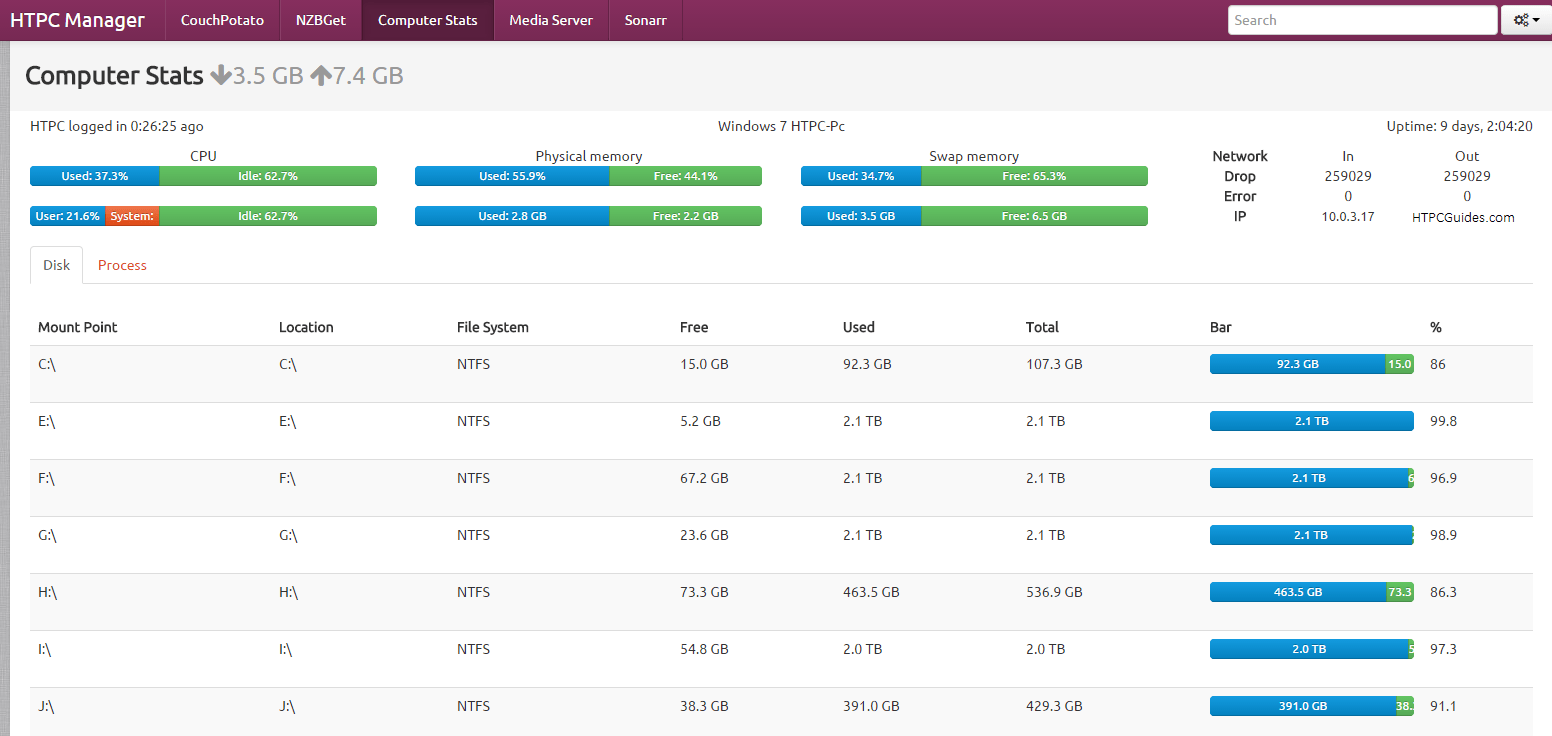
This is a screenshot of the computer stats from within HTPC Manager from a friend's Windows server, it will be similar on the Raspberry Pi
Install HTPC Manager Raspberry Pi
Install the HTPC Manager dependencies
sudo apt-get install build-essential git python-imaging python-dev python-setuptools python-pip python-cherrypy smartmontools vnstat -yInstall psutil so you can get computer stats as well
sudo pip install psutilGit clone the latest HTPC Manager from Hellowlol's repository
sudo git clone https://github.com/Hellowlol/HTPC-Manager /opt/HTPCManagerTake ownership of the HTPCManager installation directory with your pi user
sudo chown -R pi:pi /opt/HTPCManagerTry and start HTPC Manager on the Raspberry Pi
python /opt/HTPCManager/Htpc.py --daemonYou may see a cherrpy error, everything still works though so don't worry.
You can access HTPC Manager at http://ip.address:8085
Autostart HTPC Manager at Boot
HTPC Manager includes an init.d script
sudo cp /opt/HTPCManager/initscripts/initd /etc/init.d/htpcmanagerEdit the htpcmanager init.d script to match the path of HTPC Manager
sudo nano /etc/init.d/htpcmanagerChange APP_PATH to match the path we installed HTPC Manager to
############### EDIT ME ##################
# path to app
APP_PATH=/opt/HTPCManager
Make the init.d script executable
sudo chmod +x /etc/init.d/htpcmanagerUpdate the init.d script to start at boot
sudo update-rc.d htpcmanager defaultsYou are all set to configure HTPC Manager, you will need some API keys and enable WebUIs in some of the services you wish to manage.
Access HTPC Manager on your Raspberry Pi at http://ip.address:8085